How to use Easy Subs
Nine steps, start to finish. Everything lives on one screen — there's no settings menu to dig through mid-game.
Add your roster
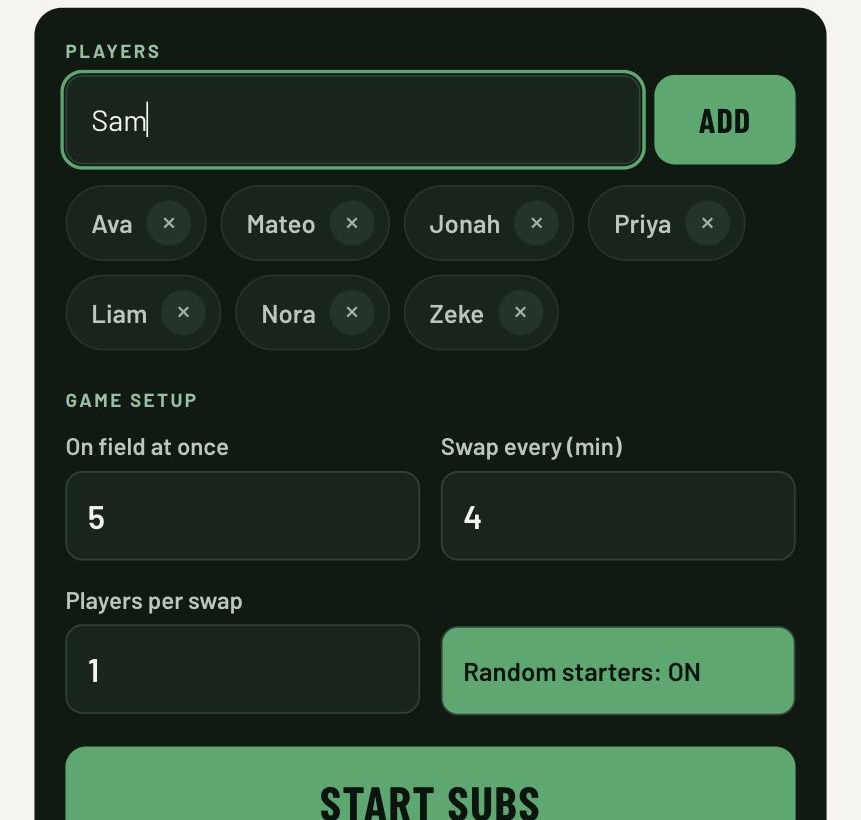
Type a name and tap ADD, or just hit Enter. Names are saved to your phone, so next Saturday the roster's already there. Tap the × on a chip to remove someone for good.
Mark anyone playing the full game
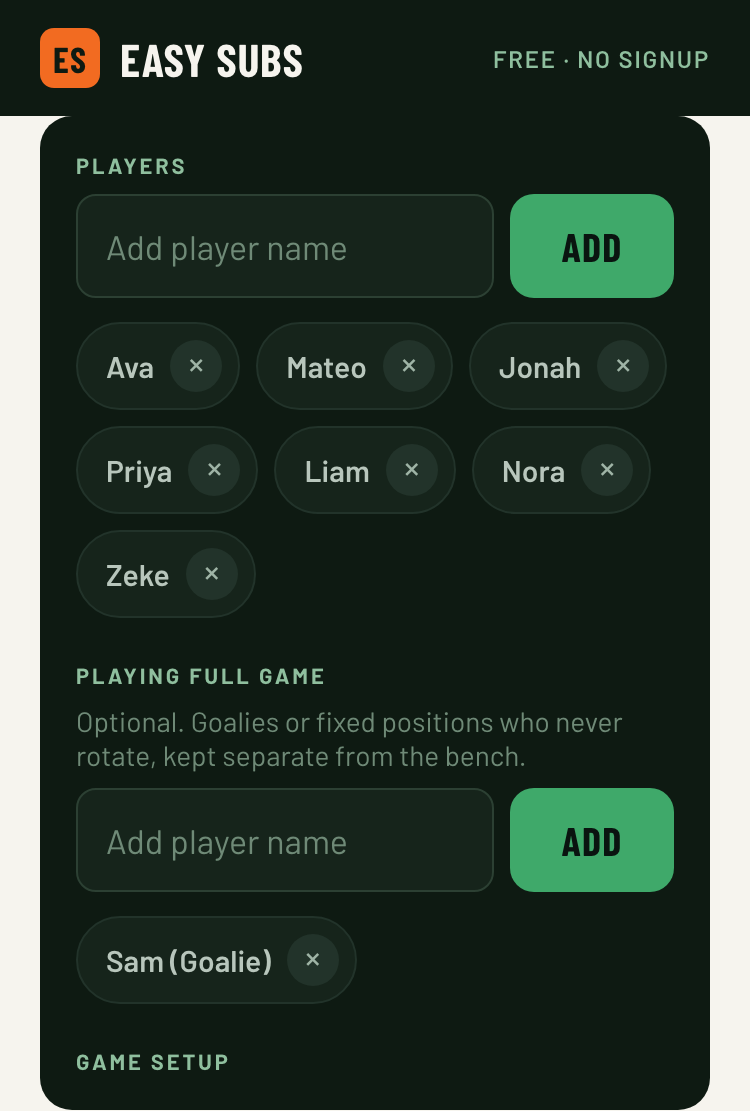
Got a goalie or another fixed position who never comes off? Add them under "Playing full game" instead of the main roster. They're kept completely separate from the bench queue and shown on their own during the game — and they count toward "On field at once" in the next step, so the app knows exactly how many spots are left to rotate.
Set up the game
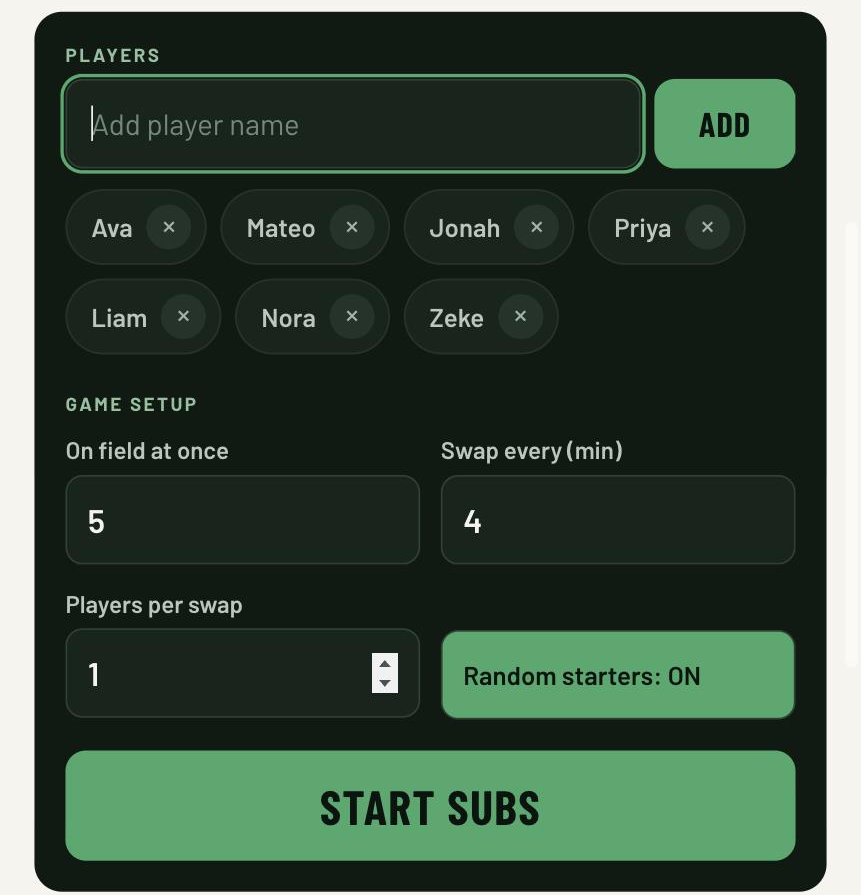
Choose how many are on the field at once — this includes anyone marked "Playing full game" — how often to swap, and how many go at a time. If you've added a full-game player, a hint under that field shows exactly how many spots are actually rotating. Leave "Random starters" on to shuffle who begins on the field, or switch it off to hand-pick your starting lineup from those remaining spots.
Start the clock
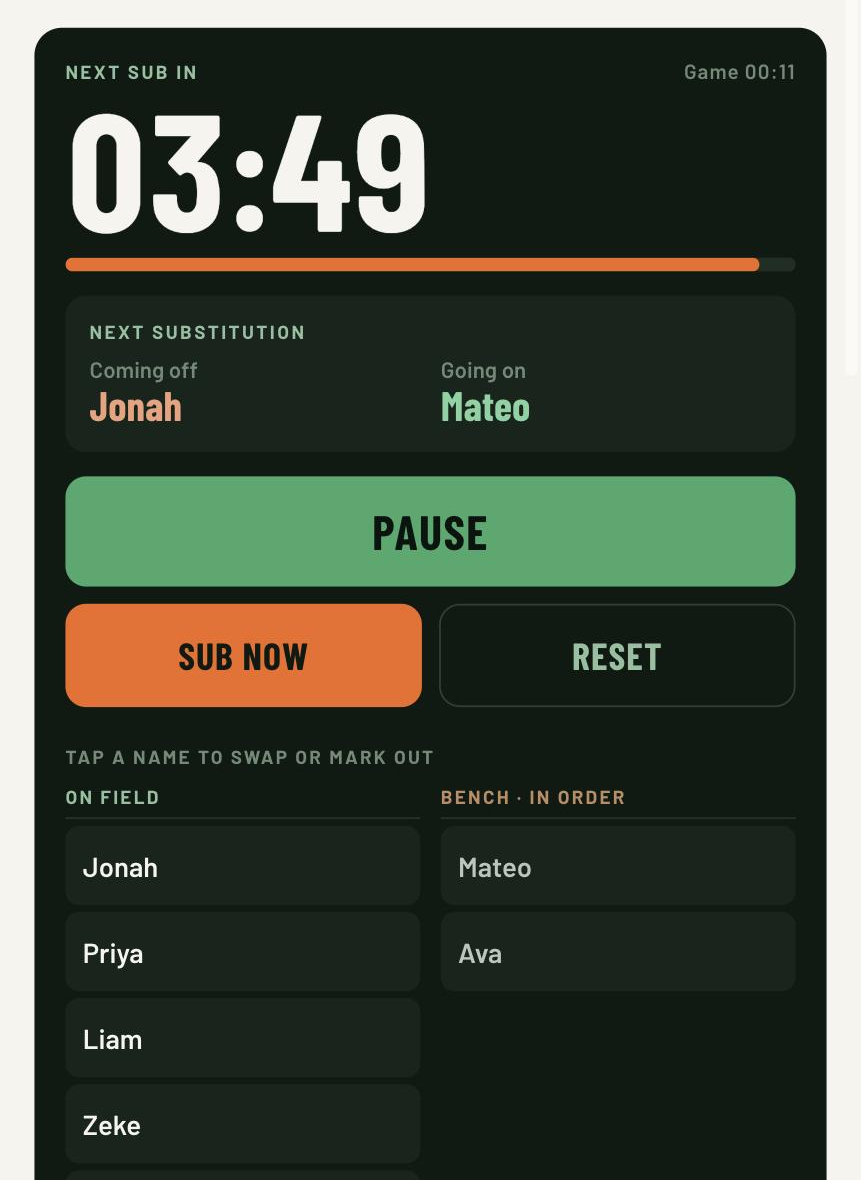
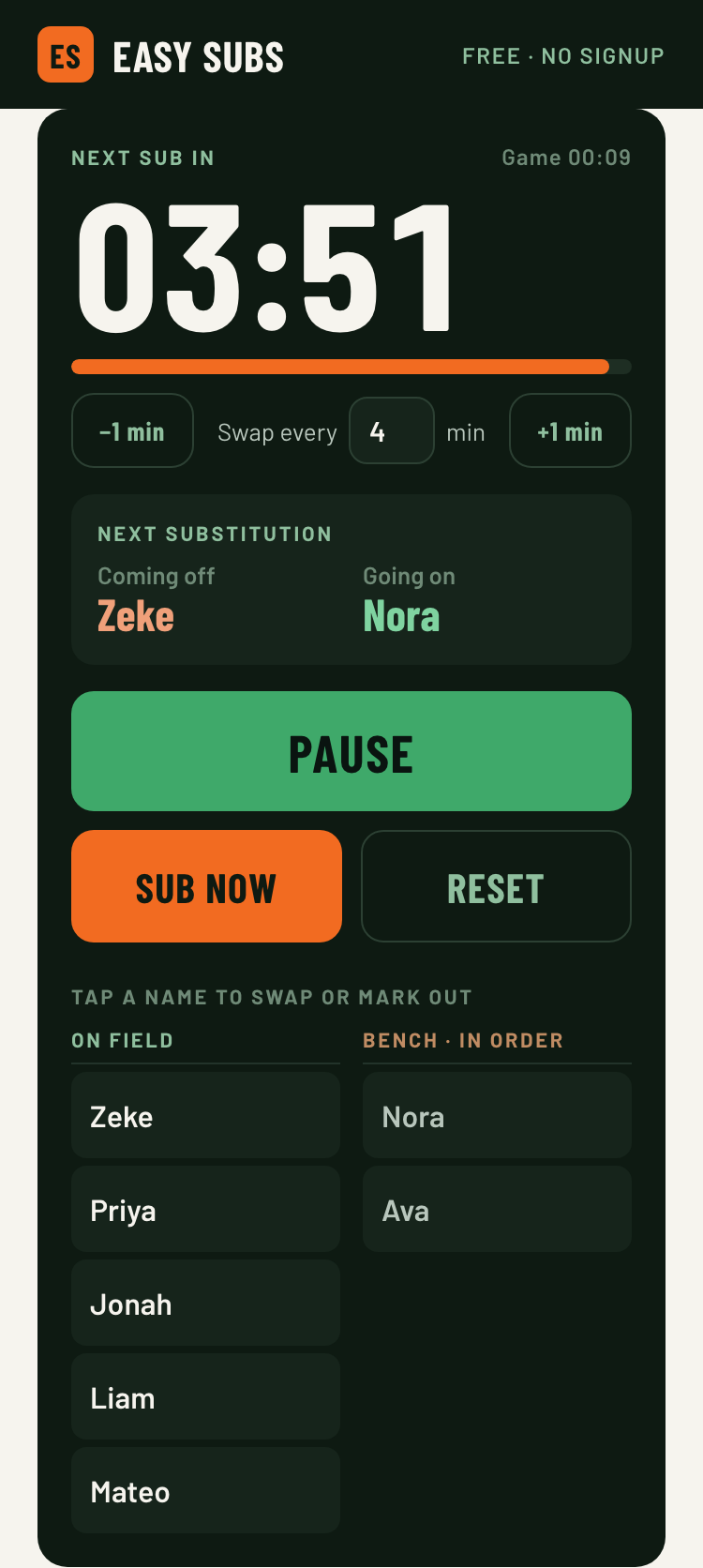
Tap START SUBS and the countdown begins. The panel below the clock always previews who's coming off and who's going on next, so there's never any guesswork when the whistle's about to blow.
Adjust the timer mid-game
Ref added time, a long throw-in, halftime — games don't run to the second. Tap −1 min or +1 min to nudge the current countdown without losing your place, or edit "Swap every" to change the interval from here on. Neither one resets the game or touches the rotation order.
When it's time to sub
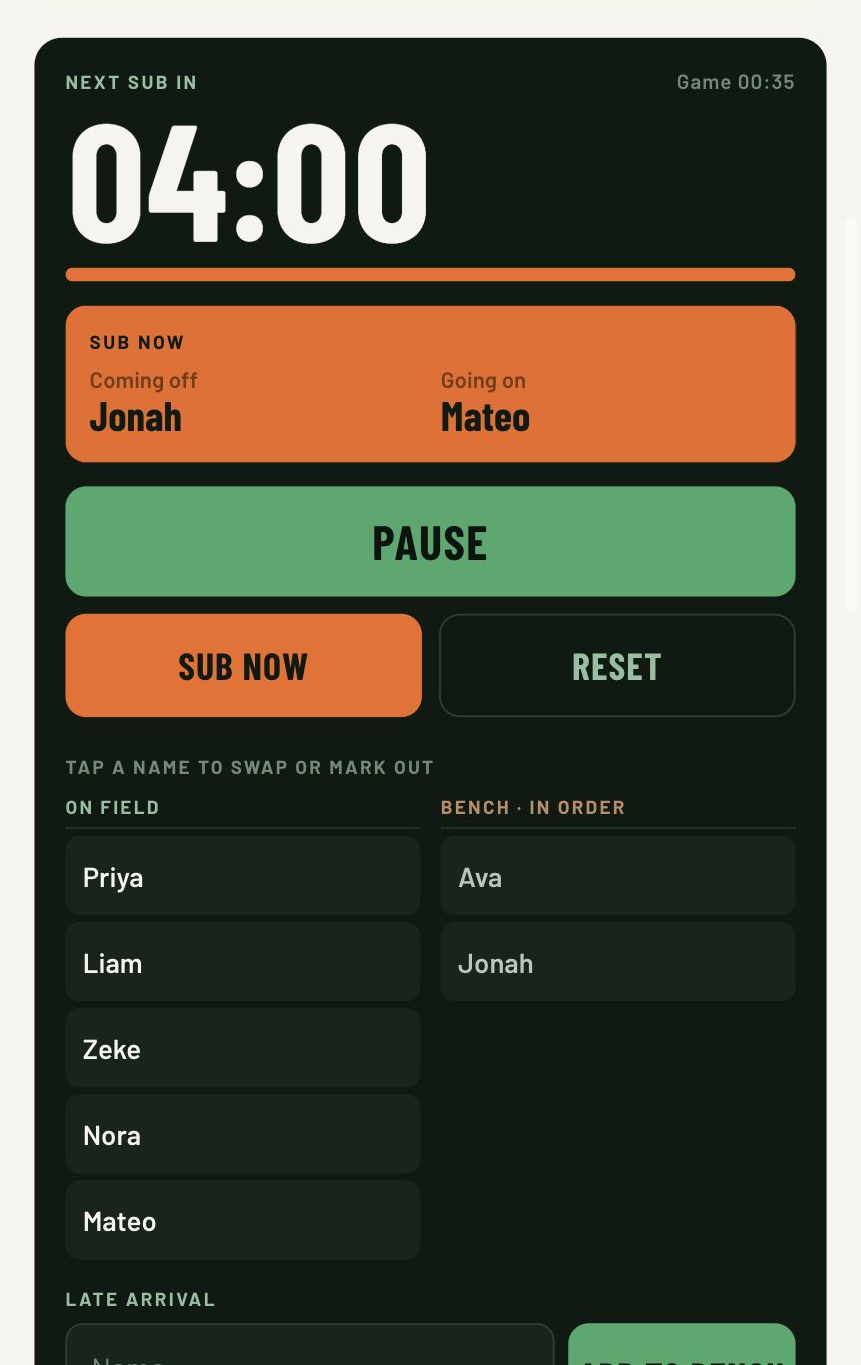
At zero, the panel flashes orange and names the swap — that's your cue. Don't want to wait for the clock? Tap SUB NOW to swap early any time.
Swap two players by hand, or reorder the queue
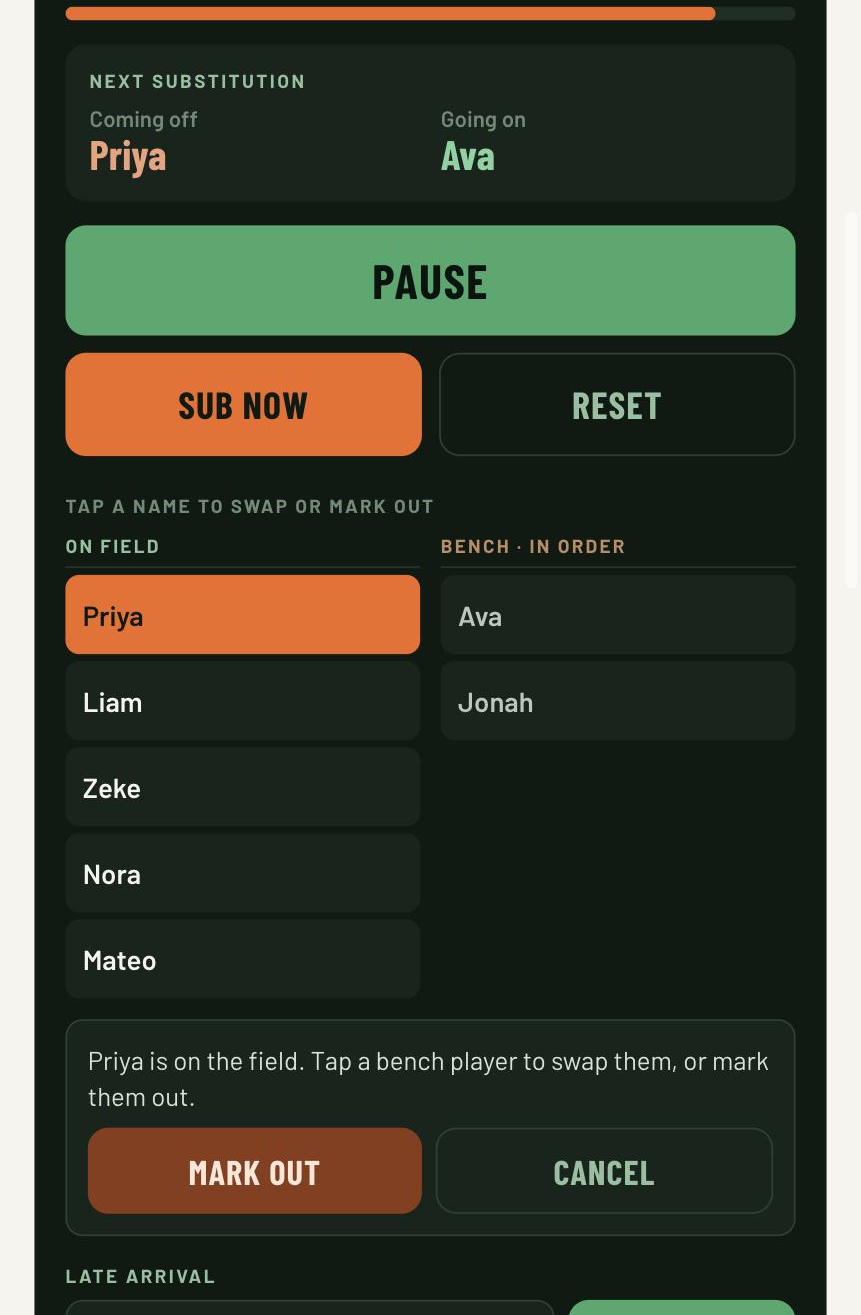
Games get messy. Tap a name on the field, then a name on the bench, and they trade places — no need to wait for the timer. Tap two names within the same group instead — two on the field, or two on the bench — and they swap positions in the queue, so you can change who comes off next or who's next up without waiting for a full rotation. A full-game player works the same way: tap them, then tap a field or bench player, and they swap roles — handy if your fixed-position player needs cover. Changed your mind? Tap CANCEL, or tap the same name again to deselect.
Mark someone out, or add a late arrival
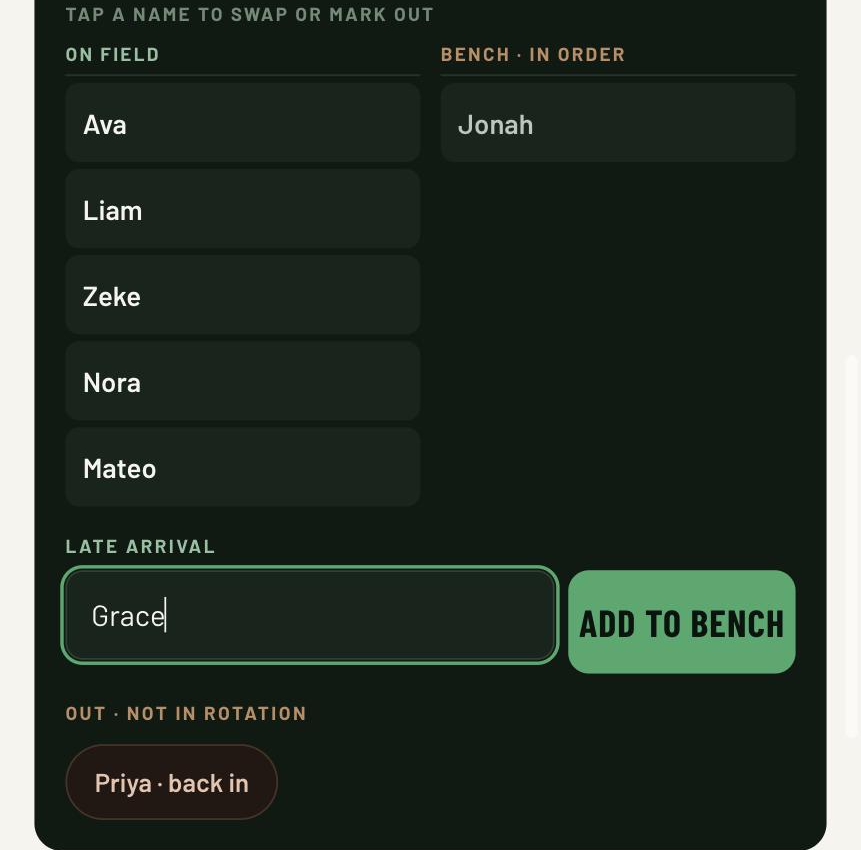
Selected a player and don't want them back in the rotation — hurt, benched, gone home? Tap MARK OUT; the bench closes around them immediately. They can always come "back in" later from the Out list. Someone shows up after kickoff? Add them by name and they join the end of the bench queue. If a full-game player is marked out, no one automatically fills their spot — select a bench player and use MOVE TO FIELD or MOVE TO FULL GAME to add them in, your choice, without swapping anyone else out. Adding a late arrival straight to "full game" doesn't pull anyone off the field either, so it's possible to end up with more players than "On field at once" allows — if that happens, select a field player and tap MOVE TO BENCH to bring the numbers back in line.
Add it to your home screen
Skip typing the address in every Saturday — add Easy Subs to your phone's home screen and it opens full-screen, like an app.
iPhone (Safari)
- Tap the Share icon (the square with an arrow pointing up) in Safari's toolbar.
- Scroll down and tap "Add to Home Screen".
- Tap "Add" in the top right.
Android (Chrome)
- Tap the three-dot menu in the top right of Chrome.
- Tap "Add to Home screen" (Chrome may offer "Install app" instead — either works).
- Tap "Add" or "Install" to confirm.